

Laser Cutting File Formats & Requirements
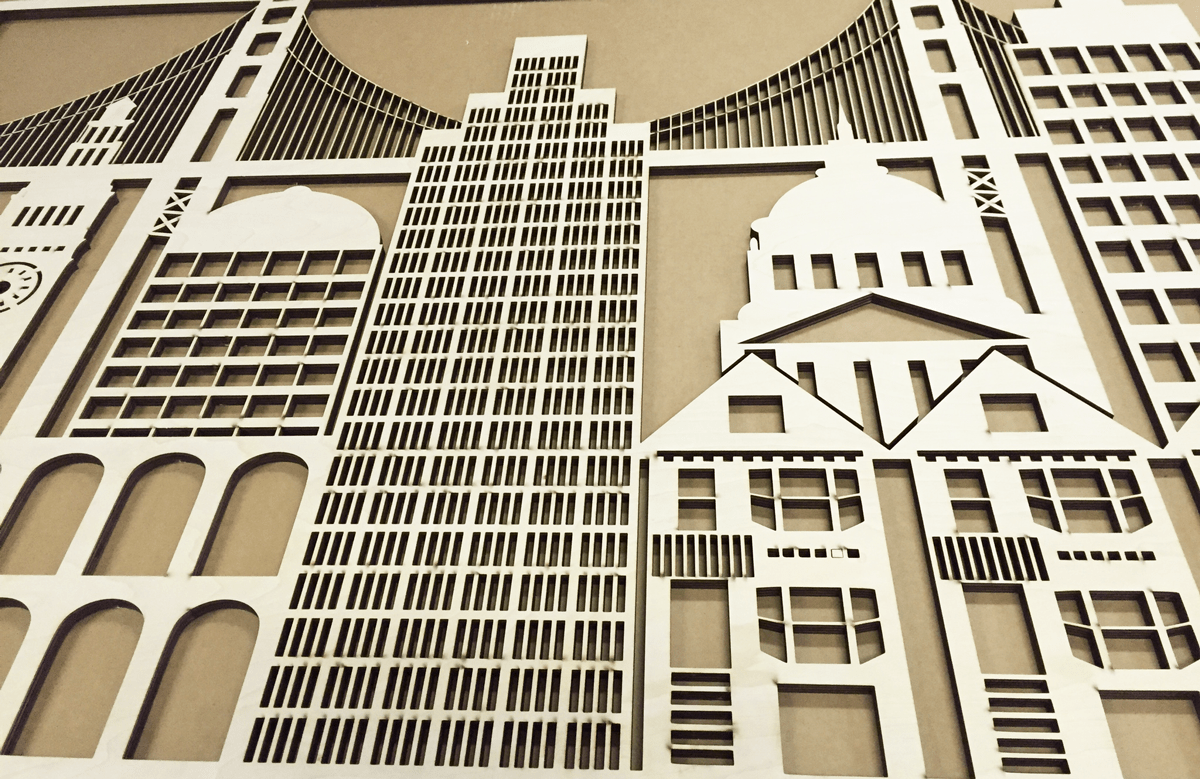
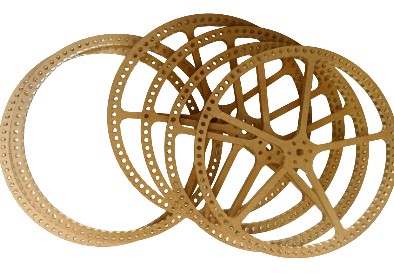
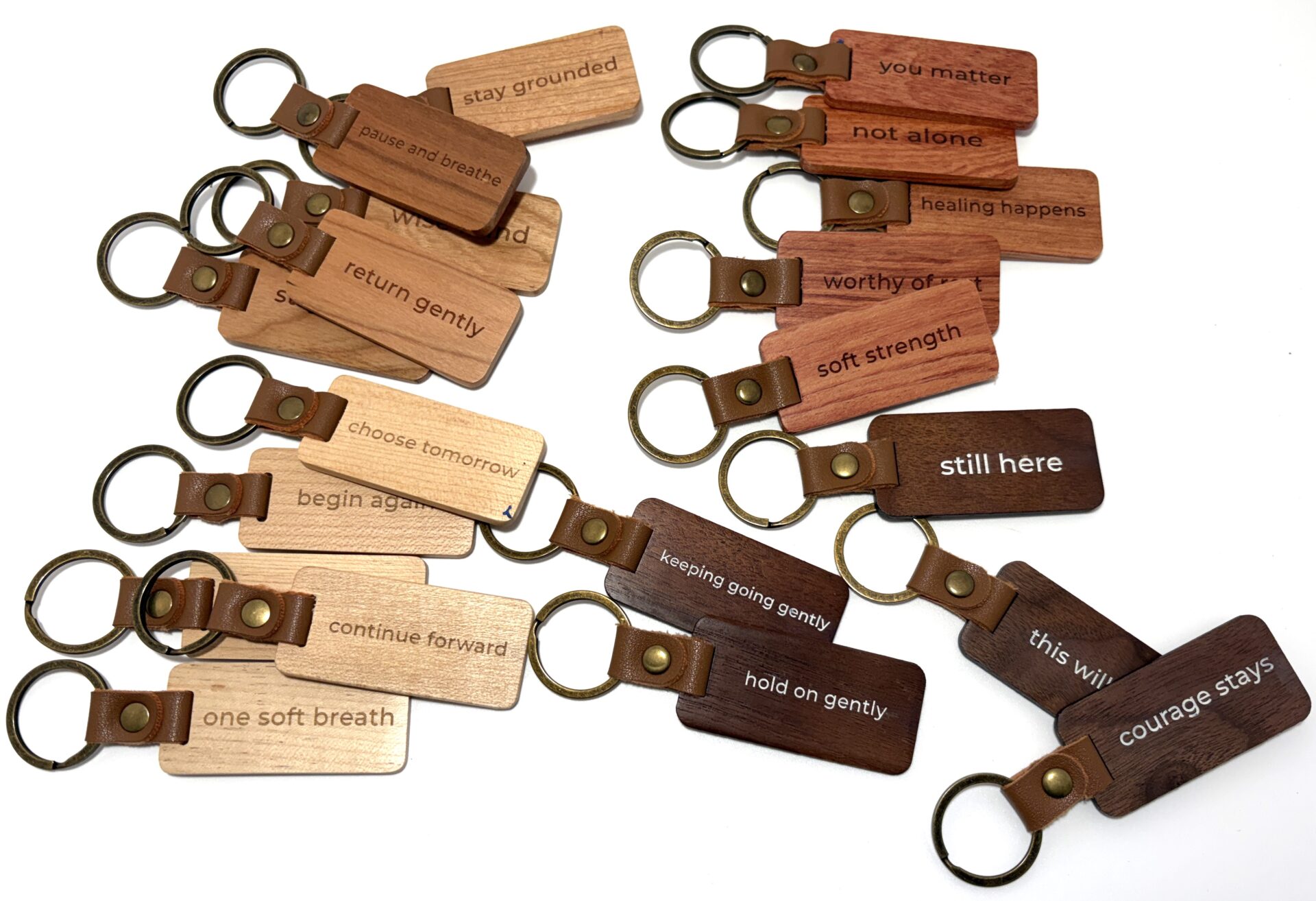

Step-by-step guide to prepare design files to achieve the best laser-cut results
Step 1: Choose Your Design Software
Use vector-based graphic design or CAD software such as:
- AutoCAD
- Adobe Illustrator
- CorelDRAW
- SolidWorks — export as a flat 2D DXF
- Fusion 360 — export as a flat 2D DXF
- LightBurn
- Inkscape — free alternative
If you are working in 3D CAD software, the file generally needs to be converted or exported to a flat 2D drawing before it can be processed for laser cutting.
Step 2: Set Your Document Scale
Design at 1:1 scale.Create your artwork at the actual physical size of the finished part. You may work in inches or metric units such as millimeters or centimeters. Please indicate which unit of measurement you are using when submitting your file.
Check your artboard size.Make sure your document or artboard fits within the available laser cutting area. Leaving approximately 0.25 inches of margin can help with material alignment.
Use RGB color mode.
For files that use color to identify different laser operations, use RGB rather than CMYK. Laser-processing software may use RGB colors to distinguish cutting, engraving, and scoring operations.
Step 3: Create and Format Your Design
Use vector lines for cutting.
Cutting paths should be vector-based and, whenever possible, continuous and closed. Avoid using raster images as cutting paths.
Use an appropriate line weight.
Set cutting lines to the minimum line weight supported by your design software. For example:
- Adobe Illustrator: approximately 0.001 pt
- CAD software: approximately 0.00 in or the software’s equivalent minimum line setting
Use separate layers or colors to distinguish between cutting, engraving, scoring, and reference information.
Our recommended color convention is:
- RED: Vector cutting
- BLUE: Raster engraving
- GREEN: Vector scoring
If your project requires different operations, clearly identify them in your file or provide instructions when submitting the project.
Convert text to outlines.
Convert fonts and text to outlines or paths before submitting your file. This prevents font substitutions or compatibility problems when the file is opened on another computer.
Remove duplicate or overlapping lines.
Check your drawing for duplicate, stacked, or overlapping lines. Duplicate paths can cause the laser to make multiple passes over the same area, potentially resulting in excessive burning or unwanted cuts.
In AutoCAD, the OVERKILL command can be used to remove duplicate or overlapping geometry. Other software programs have similar tools.
Step 4: Review and Export Your File
Before sending your file, perform a final review.
Check for open paths.
Make sure cutting geometry forms the intended complete shapes. Open paths can result in incomplete cuts or unexpected results.
Consider laser kerf.
The laser beam removes a small amount of material as it cuts. This is known as kerf. A typical kerf may be approximately 0.008 inches, although the actual amount varies depending on the material, thickness, laser system, and cutting parameters.
For parts that must fit together precisely, kerf should be considered during the design process. A small test cut is recommended for critical fits or assemblies.
Save your file in a compatible format.
It’s best to save your files in its native format. Exporting them into others may cause capatible issues.
Common vector file formats include:
- DXF (Drawing Exchange Format)
- DWG (AutoCAD)
- AI (Adobe Illustrator)
- EPS (Encapsulated Post Script)
- SVG (Scalable Vector Graphic)
If you are unsure which format is best for your project, contact us before submitting your file.
Step 5: Include Your Project Details
Please provide any information we need to process your project accurately, including:
- Quantity
- Material
- Material thickness
- Material color, when applicable
- Required finish or engraving
- Special assembly or fit requirements
- Any other important processing instructions
You may also include notes or text within your file to identify specific areas or provide instructions.
For larger projects, files can be organized or grouped by material thickness, material type, or color to simplify processing.
File Checklist:
Before submitting your file, make sure:
- ✓ Artwork is 1:1 scale
- ✓ Cutting paths are vector-based
- ✓ Cutting lines use the correct color/line weight
- ✓ Text has been converted to outlines
- ✓ Duplicate lines have been removed
- ✓ Material and thickness are specified
- ✓ Quantity is specified
- ✓ File is saved in an accepted format
Still Need Help Preparing Your Laser Cutting File?
Not sure if your file is ready for laser cutting? No worries. We’re happy to help.
Send us your file and project details, and we’ll let you know if anything needs to be adjusted before production.